Here we show you how, as a machine operator, you can use Things Support to handle a service case together with the machine manufacturer's service technician via remote maintenance.


01
–
Start remote maintenance Things Support
If you, as the machine operator, have a problem with your machine, call your machine manufacturer's service technician. He will then launch Things Support on his side and initiate the VPN activation (click on "Activate VPN").
As a machine operator, please provide your machine's serial number to the service technician over the phone. He will then enter it into Things Support for authentication purpose.
02
–
Secure establishment of the VPN connection
The service technician now initiates the TCP handshake with a click on "Start TCP" to establish a secure connection for remote support.
As the machine operator, you will now be asked for the hostname (IP address) of your machine by phone. You can find this in the machine's HMI under the machine settings.
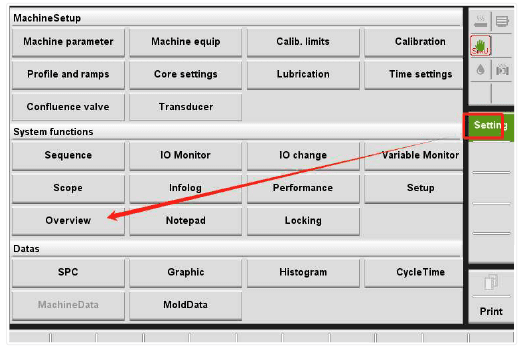
Please deactivate the checkbox under “Cloud Server Connection” and “Change control IP” if the checkmark is set.
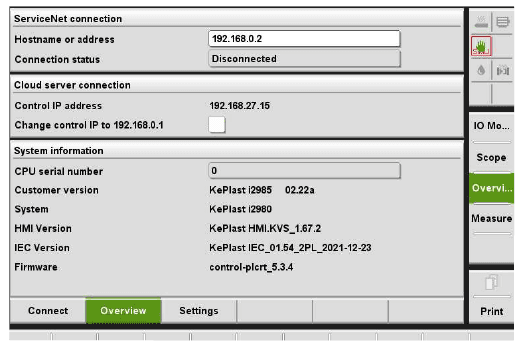
If your hostname matches the one your service technician has, you can click "Connect" on your machine's control panel. The service technician will then receive a corresponding response on their side and he clicks on "Start VNC" to initiate the secure remote connection.
Finally, as machine operator, please click on "Confirm VNC" to allow remote access. Only then will the full connection be established. The HMI screen will be mirrored to the service technician, and he can assist you in solving your problem.
For security reasons, the connection will be disconnected after a maximum of 1 hour.
As soon as you, the machine operator, click "Disconnect" on the HMI, the VPN connection - and therefore the remote maintenance session - is securely terminated. No further external access is possible afterward.