安装并配置

Things LTE Gateway

您是否已经收到我们提供的 Things LTE Gateway?只需几个步骤即可完成设置。如果 Things LTE Gateway 已安装在您的设备上,请跳过此步骤。

Necessary requirements

Things OS License

You need a valid Things OS license.

Active OPC UA Server

Make sure that your machine has a valid OPC UA server license and that the OPC UA server is installed on the machine. If this has not yet been done, please speak to your manufacturer.

Powering the Gateway

Provide a power supply for the gateway: +8 ... +36 V DC IN, typically +24 V DC.

Necessary requirements

Things OS License

You need a valid Things OS license.

Active OPC UA Server

Make sure that your machine has a valid OPC UA server license and that the OPC UA server is installed on the machine. If this has not yet been done, please speak to your manufacturer.

Powering the Gateway

Provide a power supply for the gateway: +8 ... +36 V DC IN, typically +24 V DC.

01

–

安装网关

将我们预先配置好的 Hilscher Compact Edge Gateway 专业安装在设备上或设备附近。请遵守以下安全说明。

Safety instructions - intended use

Personnel qualification for installation

Manufacturer documentation

Gateway power consumption

Is the LAN port of your machine already in use?

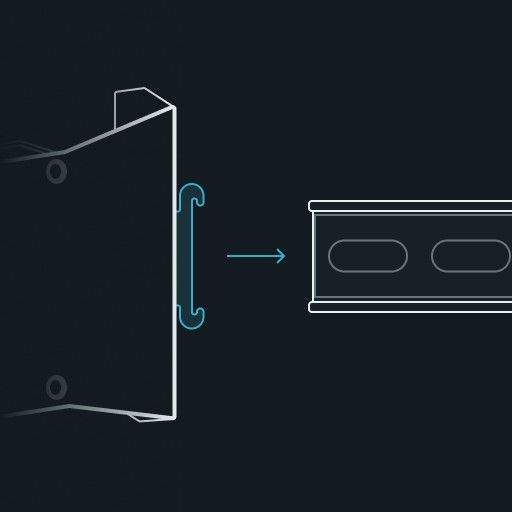
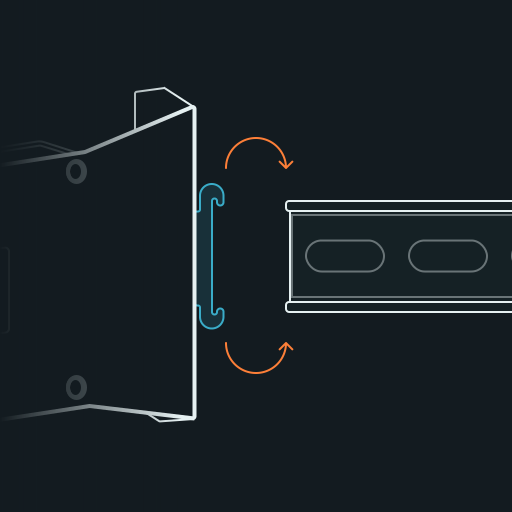
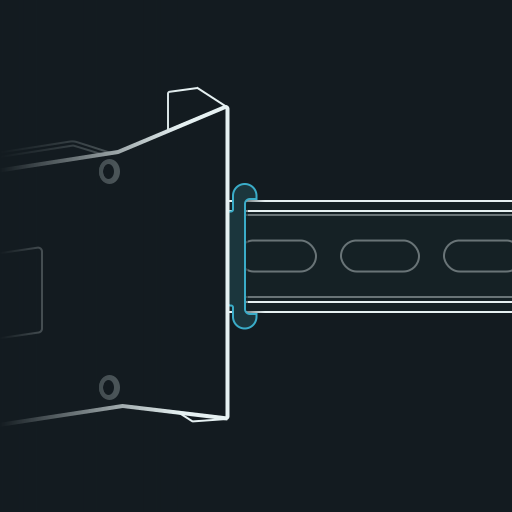
随附帽型导轨适配器,可用于将设备安装在控制柜内。

You want to use a different mounting solution?

Gateway power consumption

Is the LAN port of your machine already in use?

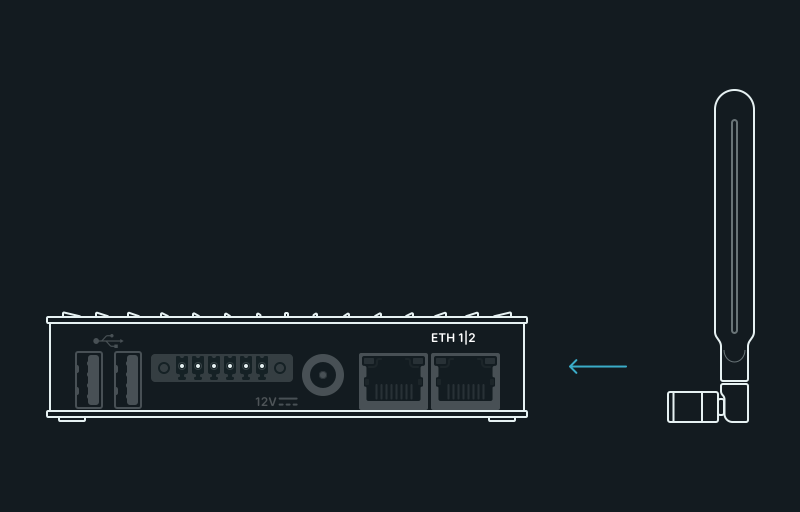
将两根移动通信天线安装在网关的 ANT1 和 ANT2 接口上。

正确连接网关线路并接通工作电源。具体连接方式如下图所示。
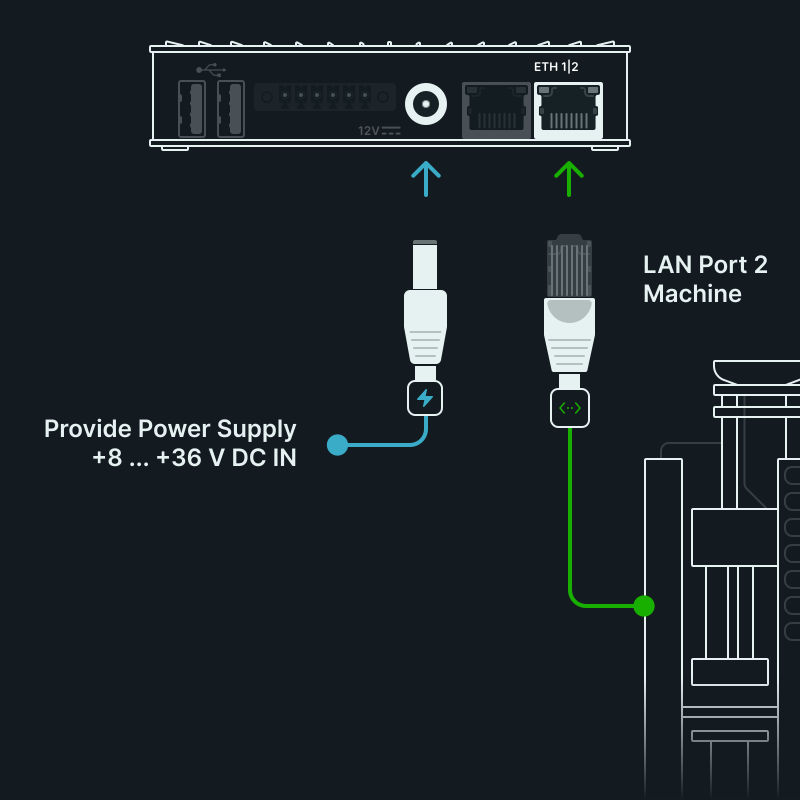
Gateway power consumption

Is the LAN port of your machine already in use?

Gateway power consumption

Is the LAN port of your machine already in use?

网关通电后,将自动通过移动网络向 Things OS 发起连接请求。

02

–

在设备上启用 OPC UA 服务器

通过设备的 HMI 启用 OPC UA 服务器。

Specify the user name and password for the OPC UA server.

Specify a static IP address and the port of the OPC UA server: e.g. “192.168.100.2/24”.

Is your machine already integrated in the machine network?

Is the machine integrated into the machine network via DCHP?

03

–

Configure gateway

Connect your service PC locally to the gateway via LAN cable, see illustration below.
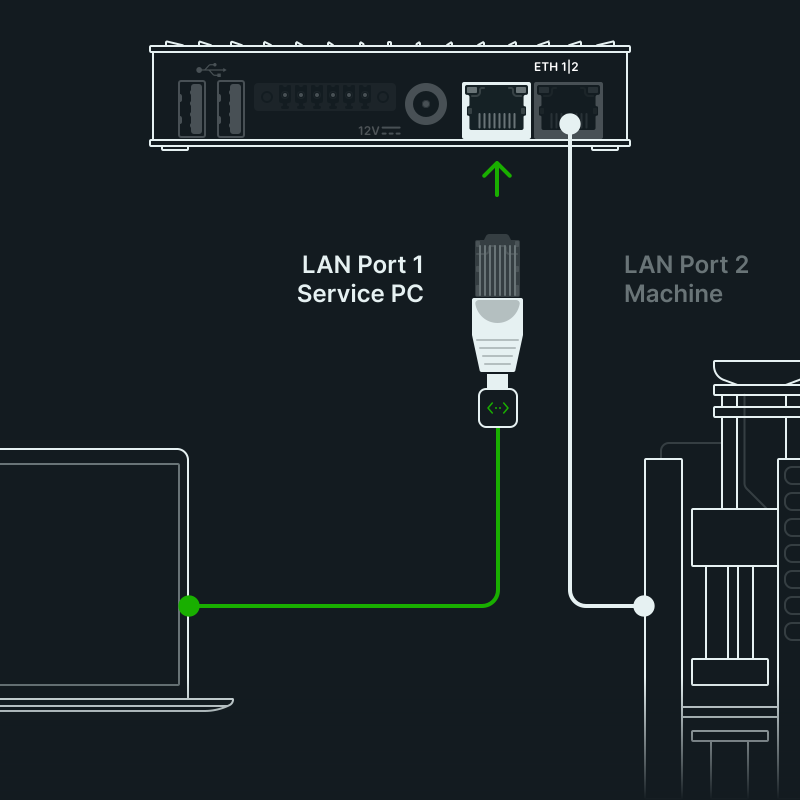
Use the access data on the back of the gateway to log in to NETfield OS on the gateway with a browser. The default setting is: https://NT0001******** (replace the * as indicated on the back), user name: admin, password: admin

You will then be asked to reset the password for the gateway.

Go to the “Network” tab in NETfield OS in the “Interfaces” section, please click on “eth1”. The machine is already physically connected there. The correct cabling of the machine is indicated by the active toggle

Now click on “IPv4” and define the static IP address for your gateway. The IP address must have the next free IP address in relation to the IP address of the OPC UA server of your machine. If you have assigned “192.168.100.2” for the OPC UA server as suggested above, now use “192.168.100.3” for the gateway.

Now enter “24” for the subnet mask as the CIDR suffix in the next field.
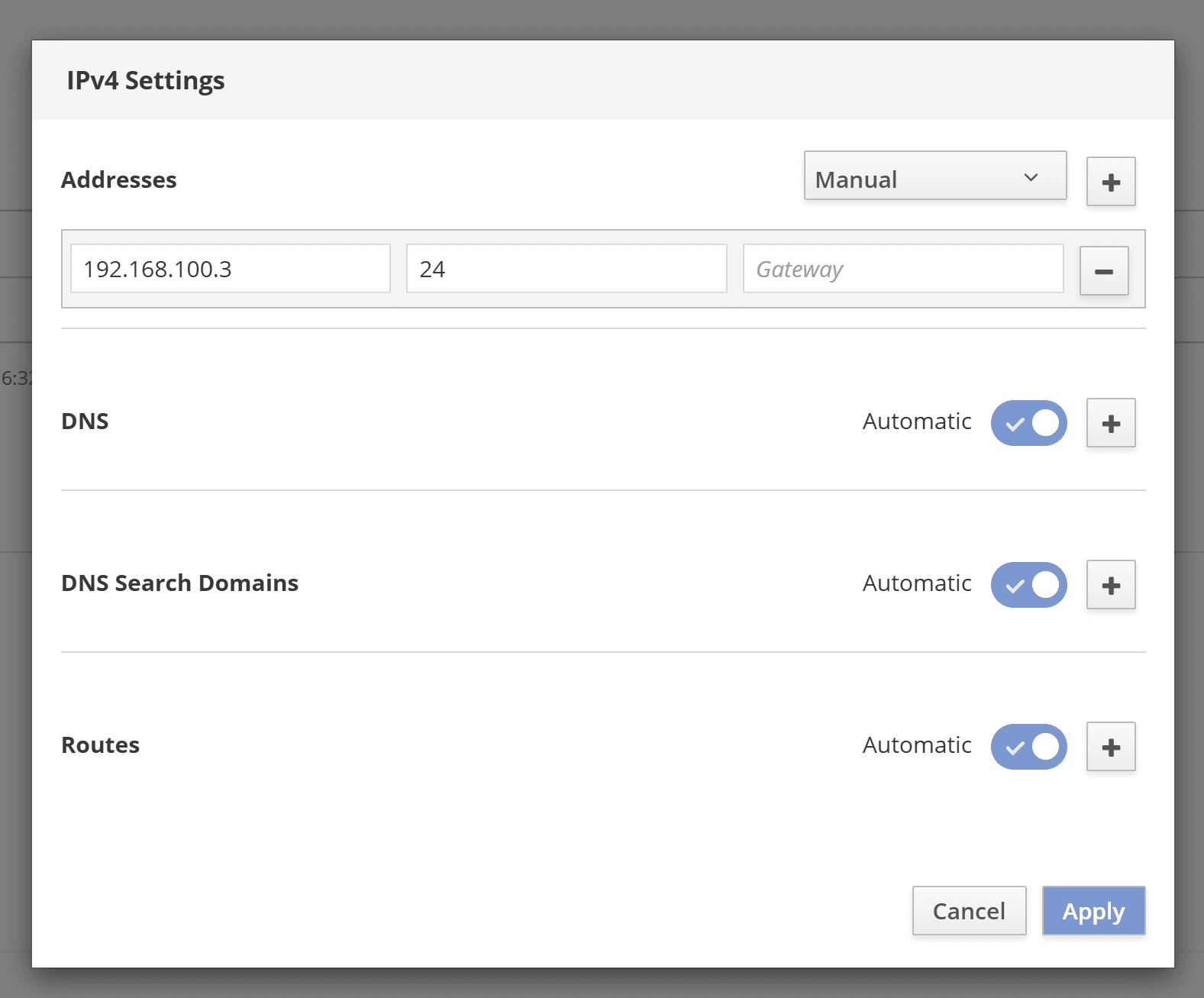
Your machine is now connected to the gateway.

Is the machine connected to the machine network via DCHP?

Can I also specify a netmask instead of the subnet mask?

How can I check whether there is a connection between the machine and the gateway?

Is the machine connected to the machine network via DCHP?

Can I also specify a netmask instead of the subnet mask?

How can I check whether there is a connection between the machine and the gateway?

Quick start guide - how to get started with Things Products

Quick start guide - how to get started with Things Products

Add your gateway and machine to Things OS

Add your gateway and machine to Things OS

Add more machines via your existing gateway

Add more machines via your existing gateway

Load the appropriate Blueprint for your machine

Load the appropriate Blueprint for your machine